If you reset your TI-84 Evo's memory, Python goes with it. Suddenly the prgm menu only offers TI-Basic, and none of your Python programs will run. TI's free browser tool reinstalls the operating system, and Python comes back with it.
Check whether Python is actually missing
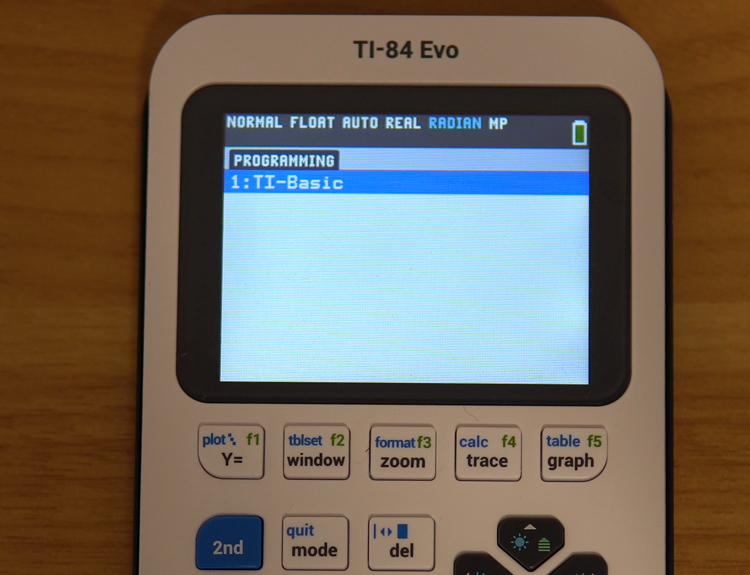
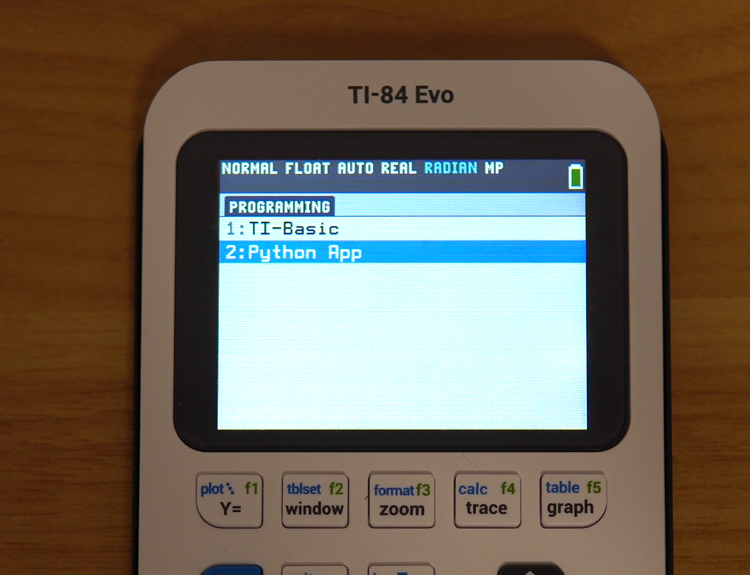
Press the prgm key. A calculator with Python installed offers two choices,
1:TI-Basic and 2:Python App. If your menu looks like the one
below, with TI-Basic alone, Python is gone and this guide will restore it:
What you need
- Your TI-84 Evo and its USB-C cable
- A computer with Chrome (TI's tool only runs there, not even in Edge)
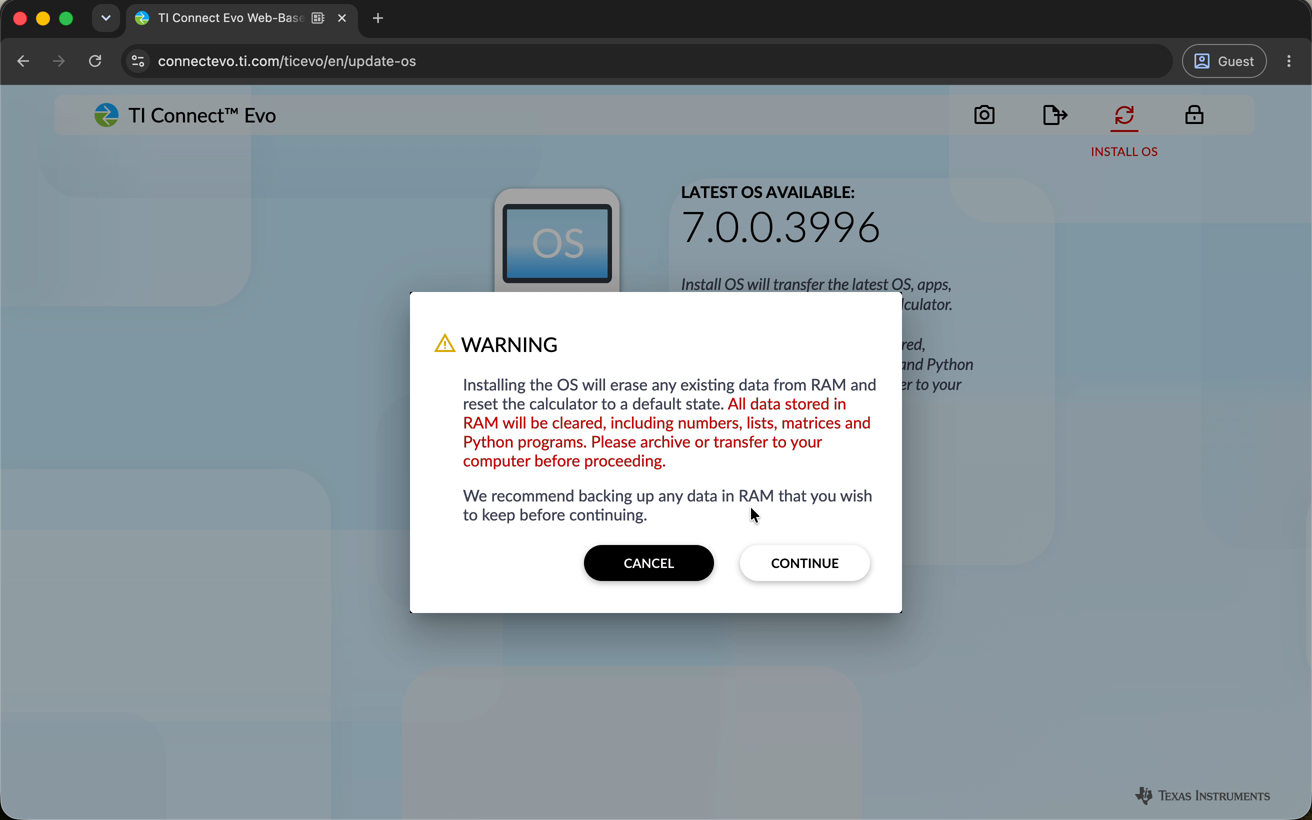
Heads up: reinstalling the OS clears everything stored in RAM, including any TI-Basic and Python programs still on the calculator. If a memory reset is what got you here, there's probably nothing left to lose, but if you have programs you care about, back them up first.
Step 1: Connect the calculator
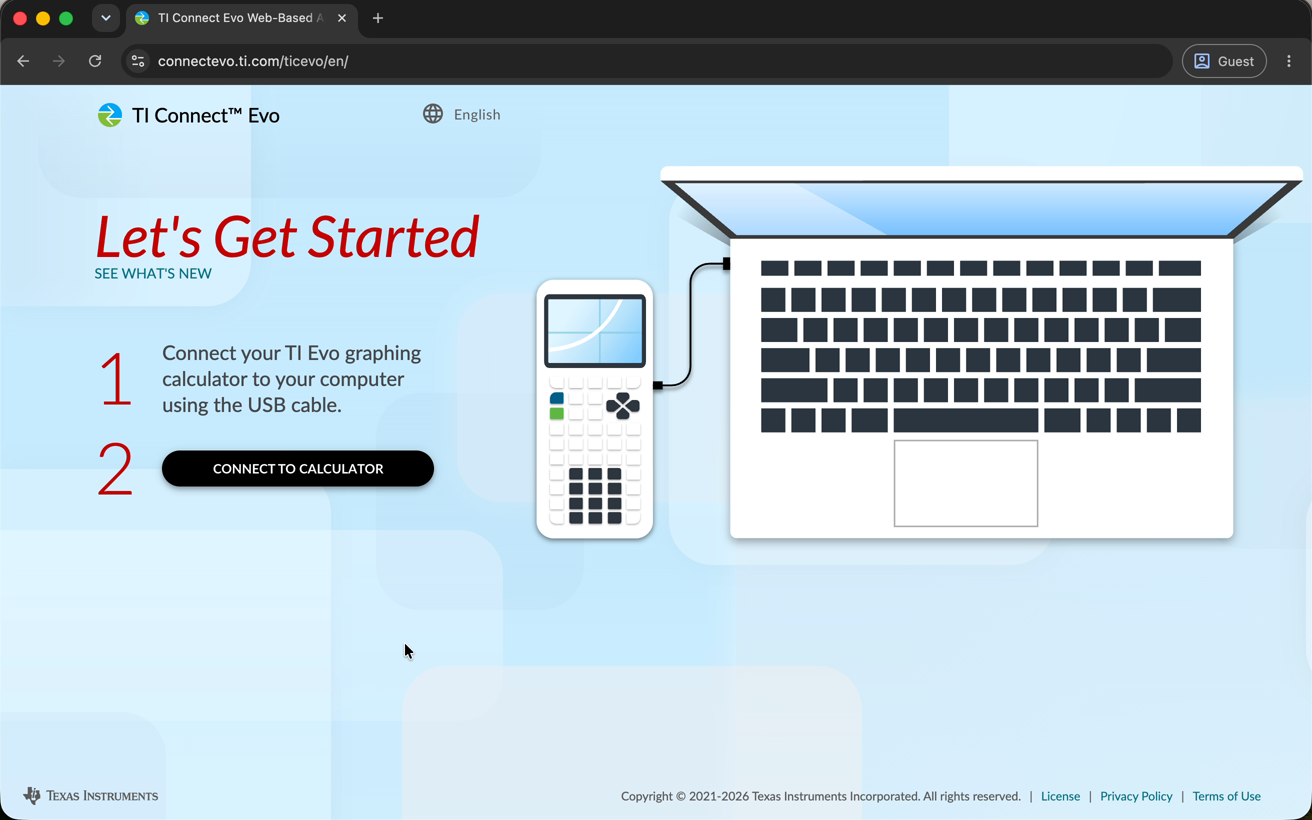
Plug the calculator into your computer and make sure it's turned on. Then go to connectevo.ti.com and click CONNECT TO CALCULATOR:
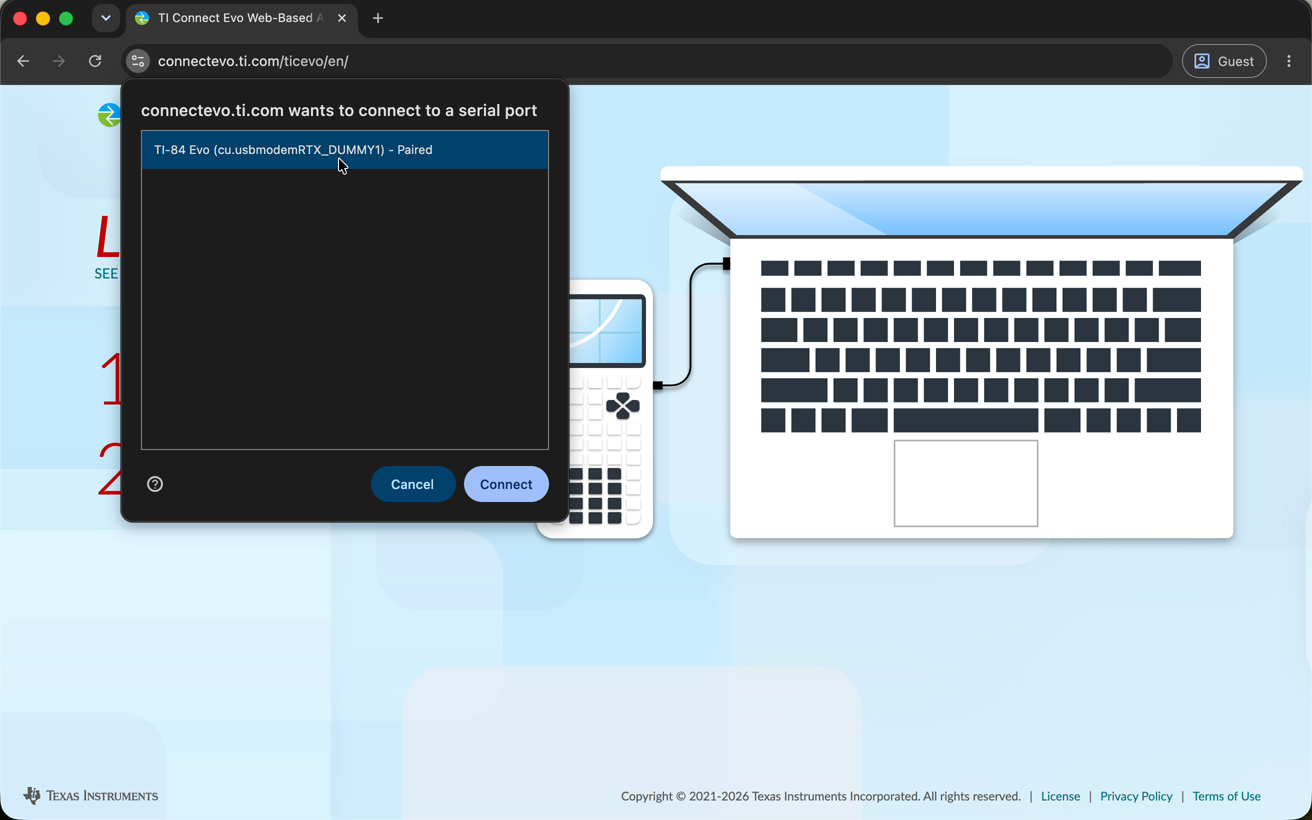
Chrome pops up a small window asking which device to use. Click your TI-84 Evo in the list, then click Connect:
Step 2: Open Install OS
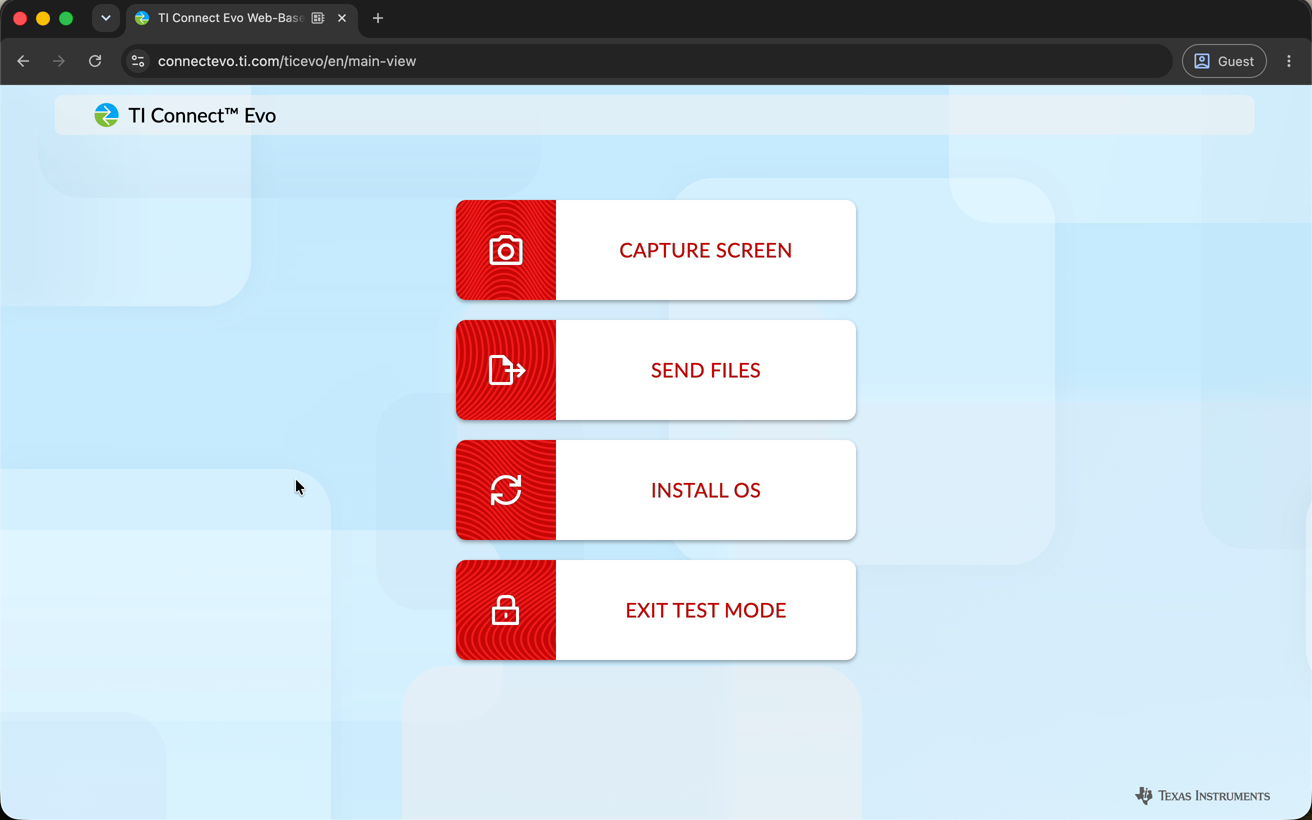
Once connected, the site shows four options. The one you want is INSTALL OS:
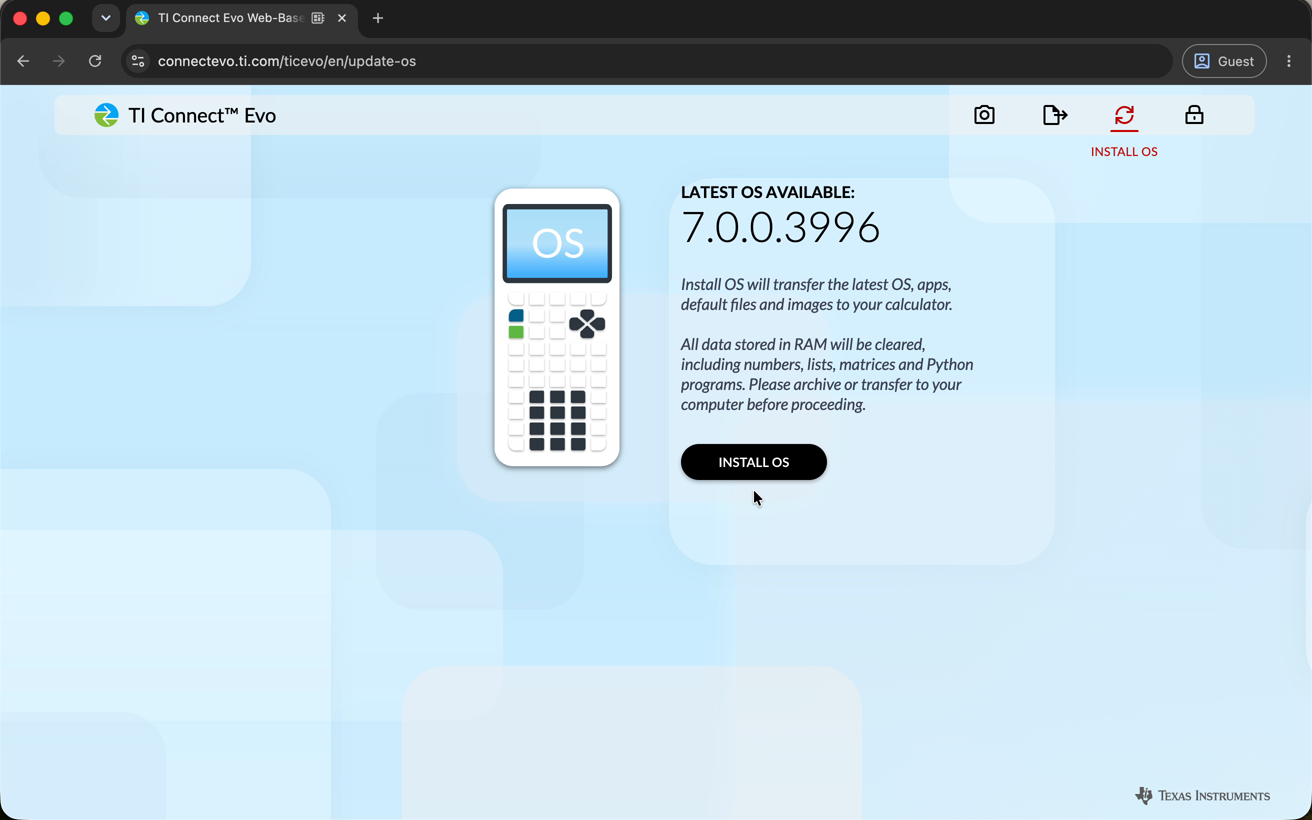
The next screen shows the latest OS version. Despite the name, this doesn't just update the operating system: it also transfers the built-in apps, and that includes Python. Click INSTALL OS:
Step 3: Confirm and wait
A warning reminds you that everything in RAM will be erased. Click CONTINUE:
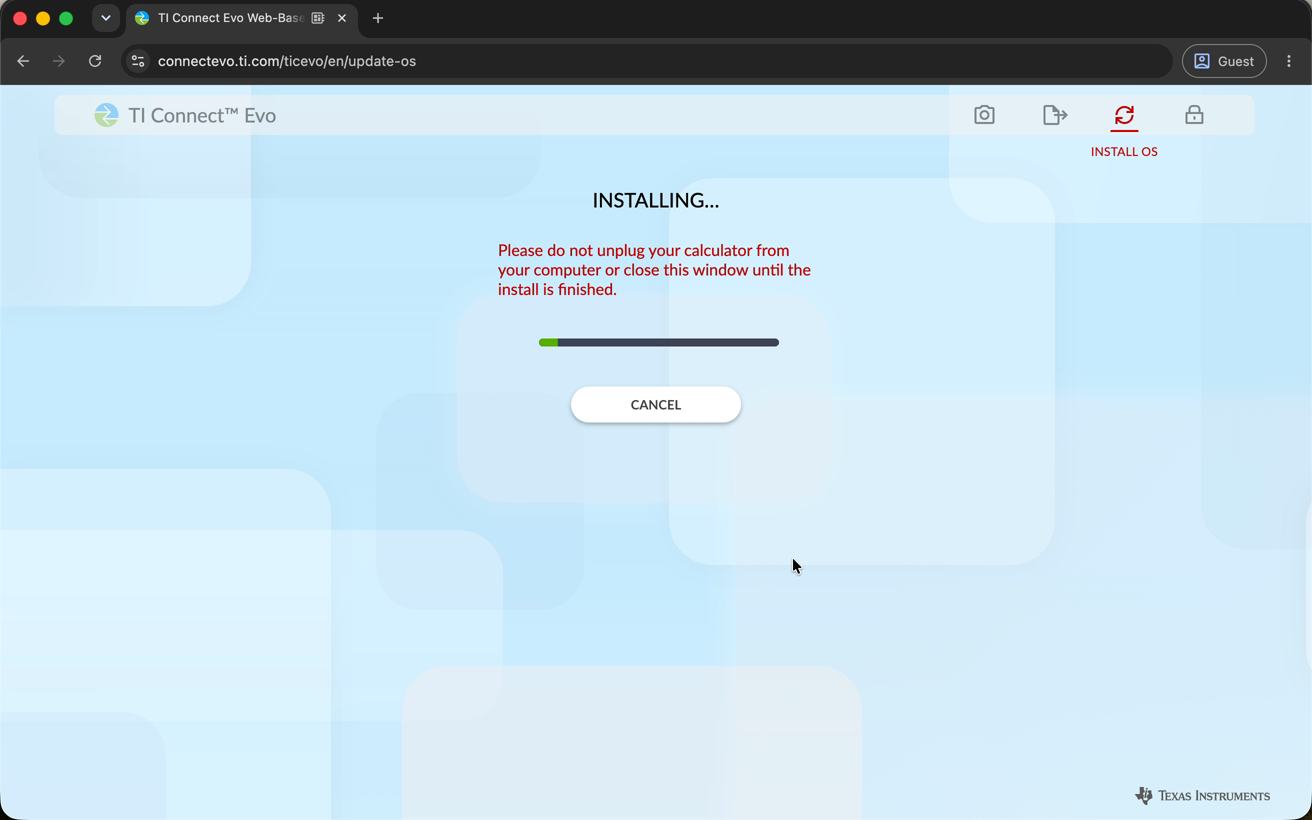
The install takes a couple of minutes. Keep the tab open and don't unplug the calculator. Partway through, the calculator's own screen switches to "Installing OS & Apps..." and it restarts on its own when it's finished.
Step 4: Check that Python is back
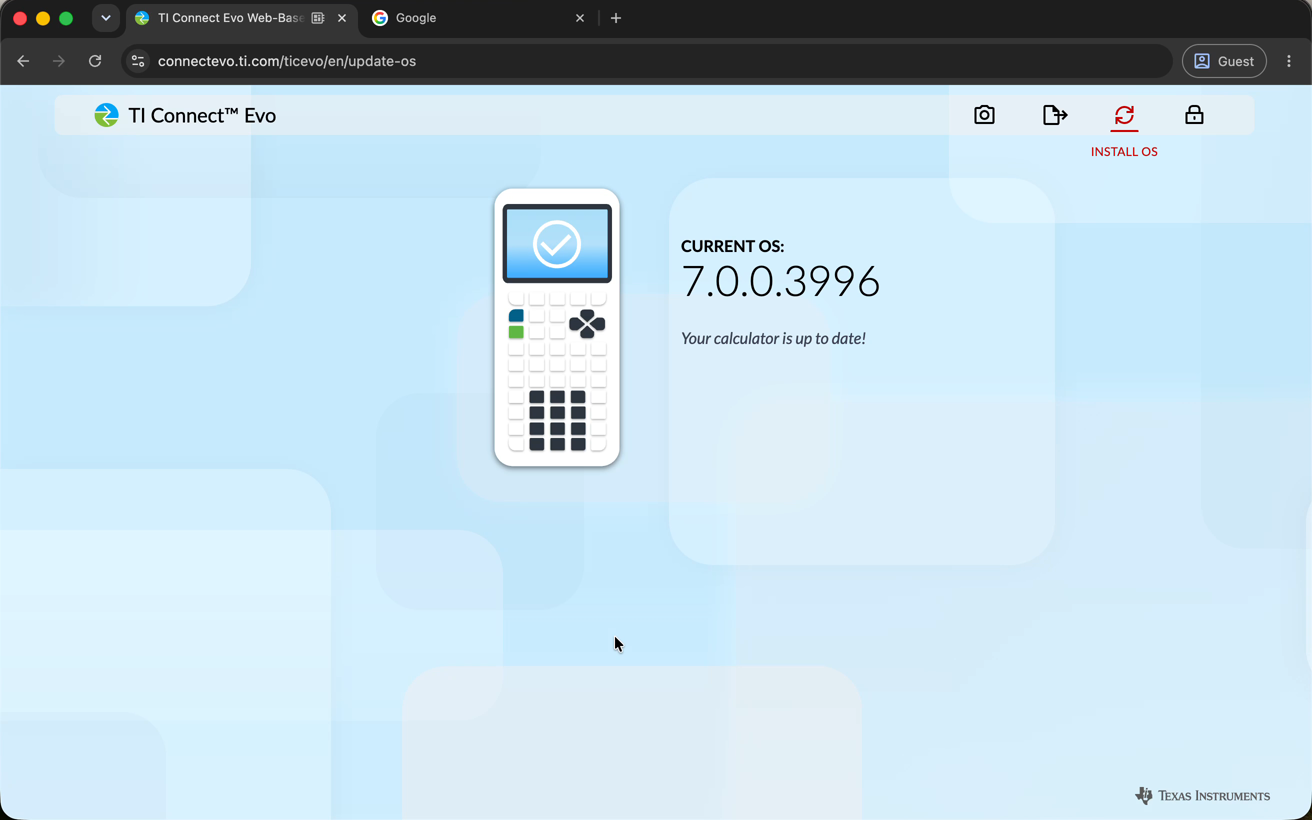
When the browser says Your calculator is up to date!, you're done. Close the tab: while it's open, TI Connect Evo keeps hold of the calculator, and other websites and tools can't talk to it.
Press prgm on the calculator and 2:Python App is back where it
belongs:
Good to know
- Why did Python disappear in the first place? Resetting all memory wipes the apps along with your files. It's a common cleanup step before exams, and this reinstall is the standard way back.
- Your OS version number may differ. The tool always offers the newest release, so don't worry if you see a higher number than the screenshots here.
- You get the stock setup back. Install OS transfers the operating system, the built-in apps, and the default files, so the calculator boots clean and ready to use.